20 AI Photo Edit Prompts to Try in 2026 (Copy-Paste)
Twenty edit prompts that actually work — for portraits, travel, fixing and restoring photos, and viral looks. Copy one, type it on your photo, and the edit takes seconds.
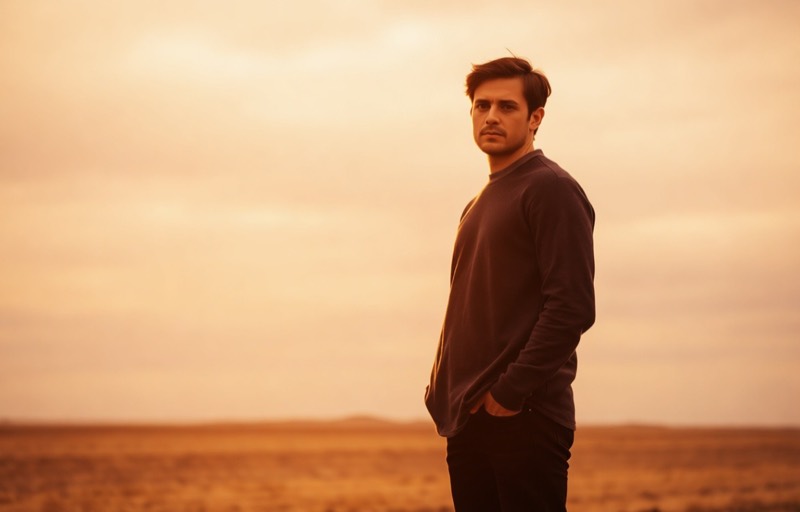
The best thing about editing by typing is that you don’t need to know the tools — you just need to know what you want. But a good prompt still beats a vague one. Below are twenty edit prompts that reliably produce clean, natural results, grouped by what you’re trying to do. Copy one, paste it onto your photo, and adjust from there.
Each prompt is an example you type — reword it however you like. Prefer one tap? Every one links to a ready-made version.
Portraits and selfies
1. Natural glow-up
Even out my skin tone and add a healthy natural glow, keep pores and real texture, still look like me.
The everyday refresh. Fresh skin without the plastic look. Try Glow →
2. Whiten teeth
Brighten my teeth to a natural white, leave the lips and gums untouched.
A dull smile is the fastest thing to fix. Try it →
3. Soft glam makeup
Add soft, natural everyday makeup — light coverage, subtle eyes, soft lip.
Polished but believable. Try it →
4. Classic red lip
Add a clean classic red lip, keep the edges sharp and the rest of the face natural.
Preview a bold lip before you commit to it in real life. Try it →
5. Look a few years younger
Soften under-eye shadows and fine lines a little, keep my features and skin texture.
Rested, not remade. Try De-age →
Travel and outdoor
6. Golden-hour glow
Add warm golden-hour light with a soft rim on the subject, keep it natural.
Turns flat midday light into the shot you wish you’d taken. Try it →
7. Empty the landmark
Remove the crowd of tourists in the background and rebuild the scene behind them, keep me in front.
The postcard version of a packed spot. Try it →
8. A more flattering angle
Reshoot me from a three-quarter angle instead of straight-on, keep the setting and light.
The angle every professional portrait uses. Try Reframe →
9. Portrait-mode blur
Blur the background for a soft portrait-mode look, keep me sharp and clearly separated.
Depth without a fancy camera. Try it →
10. New background scene
Replace the background with a clean city street at golden hour, match the light on me.
Same you, different story. Try it →
Fix and restore
11. Unblur a soft shot
Sharpen and unblur this photo, recover the detail without adding crunch.
For missed focus and shaky hands. Try it →
12. Upscale to HD
Upscale this small photo to high resolution with crisp, natural detail.
Make a tiny or web-sized photo usable again. Try HD Enhance →
13. Clean up grain
Remove the noise and grain from this low-light photo, keep the real texture.
Rescue the candlelit and concert shots. Try Denoise →
14. Colorize a black-and-white photo
Colorize this black-and-white photo with natural, believable tones.
Old family photos, suddenly present. Try it →
15. Rescue a dark photo
Brighten this underexposed photo, lift the shadows and recover natural color.
For the shots the room was too dark for. Try it →
Remove and clean up
16. Remove an object
Remove the object on the left and seamlessly rebuild the background behind it.
Wires, signs, clutter, a stray hand — gone. Try it →
17. Remove a photobomber
Remove the stranger in the background and reconstruct the scene, keep my group.
One person shouldn’t cost the whole shot. Try it →
18. Remove glasses glare
Remove the glare and reflections on the glasses and bring back the eyes naturally.
The most common group-photo ruiner. Try it →
Clean and professional
19. Studio white background
Cut me out and place me on a clean white studio background, keep my edges natural.
Instant profile, ID or product-listing look. Try it →
20. Even out harsh light
Soften the harsh shadows on my face from the flash, even out the light like soft window light.
Undo the deer-in-headlights flash look. Try it →
Start with the one that matches the photo in front of you. The prompts are just a nudge in the right direction — once you see how literal you can be (“keep skin texture”, “match the light”, “don’t change my features”), you’ll start writing your own.
Frequently asked
- How do I use these prompts?
- Open a photo in Editable, paste the prompt into the edit box, and run it. There's nothing to set up: you describe the change in plain English and the AI does the rest. Every prompt below also links to a one-tap version if you'd rather skip the typing.
- Do I have to write the prompt exactly?
- No. These are starting points. The clearer and more specific you are (name the light, the background, the target), the better the result, but you can freely reword them or combine ideas. Plain, concrete language works best.
- Will the edits look fake?
- Only if you push too hard. The prompts here are written to stay natural — keeping skin texture, matching light, preserving identity. If a result looks overdone, ask for 'natural' and 'subtle' and it pulls back.
Try these on your own photo
Editable is free to start — just type what you want and the edit takes seconds.
Get Editable on the App Store