How to Colorize a Black-and-White Photo (Old Family Photos Included)
Bringing color to a black-and-white photo can make a relative feel present again. Here's how AI colorization works, how accurate it really is, and how to do it without the result looking painted.
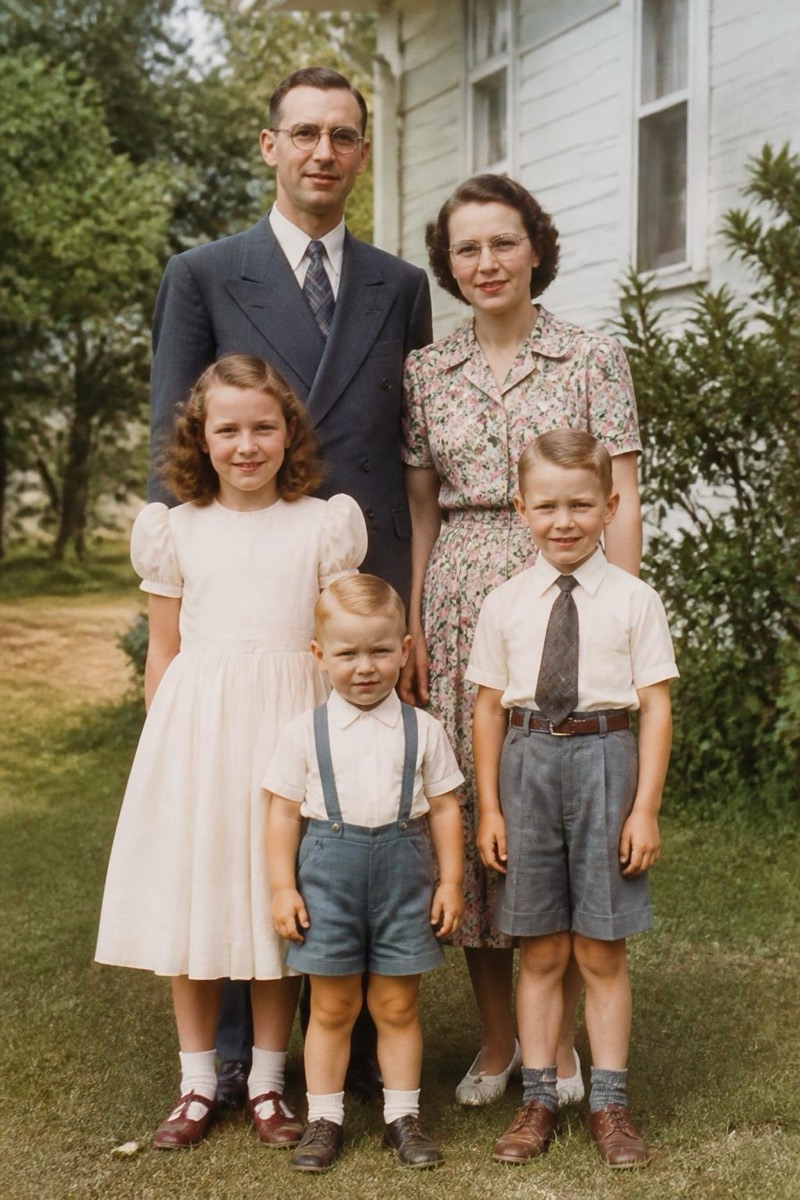
There’s a particular kind of quiet that comes from seeing a black-and-white photo of someone you love, suddenly in color. A grandparent as a young adult. A wedding from before you were born. The grey version always felt like history. The colored one feels like a moment that actually happened, to real people, in a real afternoon.
Colorizing used to be a specialist’s craft, hours of painstaking work per photo. Now the first pass takes seconds, and it’s good enough that the specialist’s job is mostly just taste.
What colorization can know, and what it guesses
The result is more trustworthy in some places than others, and it helps to know which is which:
- Skin and faces. Very reliable. The model has seen enough faces to get tone and warmth right.
- Skies, grass, water, wood, foliage. Reliable. These have a narrow, learnable range of real colors.
- Clothing and painted surfaces. Plausible, not certain. A dress could truthfully have been any color; the AI picks a believable one.
- Unusual or specific objects. Best guess. A team jersey or a particular car might not match reality.
Knowing this keeps your expectations honest: the scene will feel real, but a few specific colors are the model’s interpretation.
Why filters and sliders can’t do it
Warmth and tint sliders in the Photos app tint the whole image one direction. They can make a grey photo look sepia or cool, but they can’t make the sky blue and the skin warm and the grass green at the same time, because they don’t know which pixel is which. Colorization needs to understand the scene, not just shift its tone. That’s the leap sliders can’t make.
How AI colorization actually works
The model reads the photo, recognizes what each region is (a face, a sky, a coat), and assigns colors that fit both the object and the light in the scene. Because it understands context, it keeps the coloring coherent: shadows stay darker versions of the same hue, highlights stay lighter, and skin keeps its natural variation instead of turning into one flat tone. That coherence is what separates a real-looking result from an old hand-tinted postcard.
To do it in Editable:
- Get the app (free to start) and open the Explore tab.
- If the photo is damaged, run Remove scratches first to repair creases, tears and stains.
- Then tap Colorize and pick your black-and-white photo. It returns a natural-color version in seconds.
- For an old, low-resolution scan you plan to print or frame, finish with HD Enhance.
Setting honest expectations
- Portraits and outdoor scenes: excellent. Skin, sky and greenery come back looking natural and alive.
- Everyday clothing and interiors: very good. Believable, even if a specific color isn’t the historical one.
- Rare, brand-specific or symbolic colors: your call. If a uniform or heirloom had a color that matters, you may want to nudge it; the AI gives you a strong, tasteful starting point.
Why it’s worth doing
Beyond the technical result, colorized photos tend to get shared, printed and kept in a way the grey originals never were. A colored portrait of a great-grandparent becomes something the whole family gathers around. The color didn’t change the past. It just made it easier to feel close to.
Frequently asked
- Are the colors accurate, or is the AI guessing?
- It's an informed guess. The model has learned what skin, skies, grass, wood and common fabrics look like, so those come back convincingly. It cannot know the exact color of a specific dress or a painted wall, so treat clothing and unusual objects as plausible rather than certain. Faces, skin and outdoor scenes are where it's most trustworthy.
- Will colorizing damage or change the original photo?
- No. You keep your original file untouched and get a new colorized copy. Nothing about the black-and-white version is lost, so you can always compare or go back.
- My photo is also scratched and faded. What order should I fix things in?
- Repair first, colorize second. Removing scratches, creases and stains gives the colorizer clean detail to work from, so the color lands on the photo rather than on the damage. Finish by enhancing resolution if you plan to print.
- Can I colorize a very old or low-quality scan?
- Yes, though the cleaner the scan, the better the result. If a scan is soft or small, restoring and enhancing it first gives the colorizer more real detail to color, and the final image holds up much better.
Try it on your own photo
Editable is free to start — edits take seconds, no editing skills needed.
Get Editable on the App Store