How to Remove Tourists and Crowds from a Travel Photo
You framed the perfect shot of the landmark and so did two hundred strangers. Here's how AI clears a crowd from a travel photo and gives you the empty-street version you pictured.
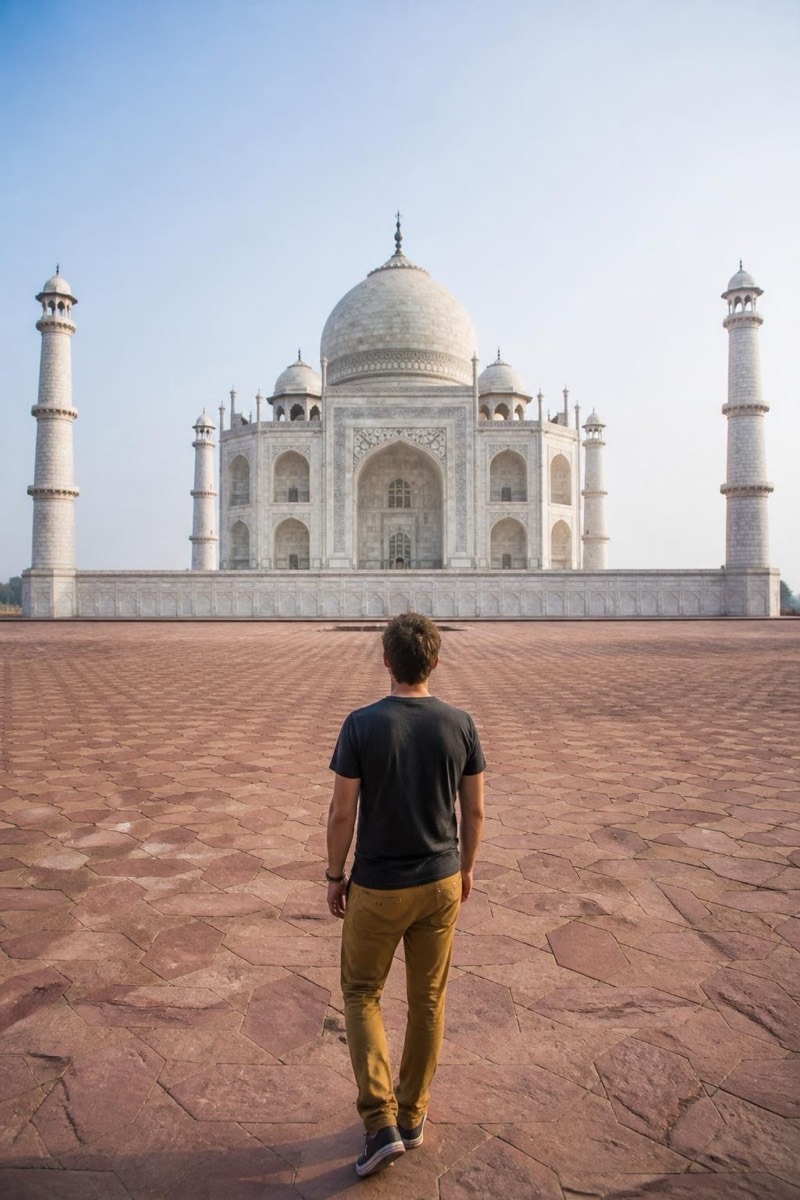
Every famous place has two versions: the one on the postcard, serene and empty, and the one you actually stood in, shoulder to shoulder with a few hundred other people all taking the same photo. You waited, you framed it perfectly, and there’s still a stranger in a bright backpack dead center, and a tour group filling the steps behind you.
The empty-landmark version you imagined is now something you can create after the fact, no dawn wake-up required.
Why a crowd is harder than one photobomber
Removing a single stray person is a small patch. A crowd is different: lots of overlapping people, spread across the background, each hiding a piece of the scene. The challenge isn’t erasing them, it’s rebuilding everything they were standing in front of, coherently, so the steps still line up and the wall still continues. That’s exactly the kind of large-scale reconstruction that needed a desktop and real skill, until recently.
What manual tools struggle with
The iOS Photos “Clean Up” brush and similar tools work well on one small object on a simple background. Point them at a dense crowd and they smear, because you’re asking them to invent a large, structured area (architecture, perspective, repeating steps) from a tiny brush. The result is a blurry patch where the tour group used to be. Removing a crowd needs scene understanding, not a bigger eraser.
How AI crowd removal actually works
The model separates your foreground subject from the background, identifies the people as clutter, and reconstructs the scene behind them by continuing the structures it can see: the pavement, the balustrade, the facade. Because landmarks are geometric and repetitive, it has strong cues to rebuild from, which is why an emptied plaza or staircase looks like it was simply quiet that day.
To do it in Editable:
- Get the app (free to start) and open the Explore tab.
- Find Remove crowd under Remove and tap Try.
- Pick your travel photo. The background crowd clears and the scene rebuilds in seconds, keeping you and your group in front.
If a single close-up stranger is the main problem rather than a whole crowd, Remove photobomber is the more targeted tool.
Setting honest expectations
- Sparse-to-moderate crowds with visible background: excellent. Strangers vanish and the scene looks naturally empty.
- Dense crowds with some background: very good. Most of the clutter clears; the busiest patches are reconstructed convincingly.
- A solid wall of people, no scene behind: limited. With almost no real background to rebuild from, the fill is more invention than reconstruction.
Why it’s worth it
The photo you take at a landmark is really a photo of you there. Clearing the crowd doesn’t fake the trip, it just removes the two hundred strangers who happened to share your view, and leaves the picture you actually meant to take.
Frequently asked
- Can AI really remove a whole crowd, not just one person?
- Yes. Instead of erasing people one by one, it treats the crowd as background clutter and reconstructs the scene behind them, the steps, the plaza, the wall. Sparse-to-moderate crowds clear beautifully. A solid wall of people with little visible background is the hard case, because there's less real scene to rebuild from.
- What replaces the people after they're removed?
- The AI reconstructs whatever was behind them based on the surrounding scene: continuing the pavement, the steps or the architecture. Because landmarks are so structured and repetitive, this usually looks completely natural.
- Can I keep myself and my group and only remove everyone else?
- That's the most common use: keep the subjects in the foreground and clear the strangers in the background. The tool distinguishes your foreground subject from the background crowd and rebuilds only what's behind.
- Does it work on video-frame grabs or only clean photos?
- It works best on a normal photo. A soft or heavily-compressed frame grab still cleans up, but a sharp original gives the AI more real scene detail to reconstruct the emptied areas convincingly.
Try it on your own photo
Editable is free to start — edits take seconds, no editing skills needed.
Get Editable on the App Store