How to Remove a Photobomber from a Photo
One perfect group shot, one stranger wandering through the back of it. Here's how AI removes a photobomber and rebuilds the background so it looks like they were never there.
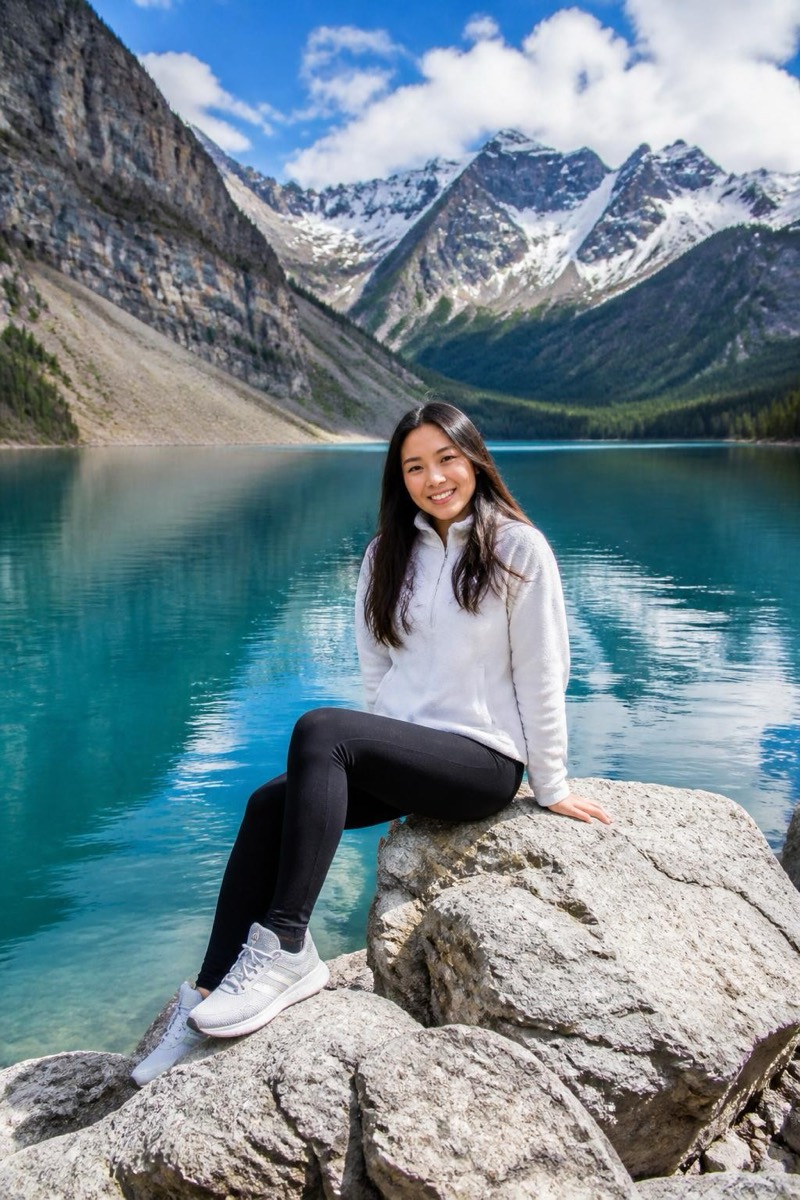
It’s the shot: everyone’s smiling, nobody blinked, the light is right. And then you notice them, a stranger mid-stride at the edge of the frame, a person on their phone in the background, someone’s dad walking into the sea behind the couple. One uninvited human turning an otherwise perfect photo into an almost.
The good news is that a photobomber is one of the easiest things to erase cleanly, because it’s usually a small, well-defined patch against a background the AI can rebuild.
Why a single stray person is the easy case
Unlike a dense crowd, a photobomber is typically one person against a mostly-visible background, a wall, the sky, the beach, the plaza. That means there’s plenty of real scene around them to reconstruct from. Remove the person and the AI continues the pattern that was already there. It’s the most forgiving kind of removal.
What the built-in tools do (and where they stop)
The iOS Photos “Clean Up” tool can brush out small objects, and for a distant photobomber on a plain background it sometimes does fine. It struggles when the background has structure (railings, a patterned wall, faces in a crowd behind them) or when the person is large in the frame, because it’s filling from nearby pixels rather than understanding the scene. That’s when you get a soft, obvious patch instead of a clean fix.
How AI photobomber removal actually works
The model identifies the person as separate from your subjects and the setting, then reconstructs the background they were blocking by continuing the surrounding scene, matching texture, perspective and light. Because it understands what’s a wall versus a wave versus a face, the rebuilt area belongs to the photo rather than sitting on top of it.
To do it in Editable:
- Get the app (free to start) and open the Explore tab.
- Find Remove photobomber under Remove and tap Try.
- Pick the photo. The stray person is erased and the background rebuilt in seconds.
If it’s a whole background of strangers rather than one person, reach for Remove crowd instead; for any non-person clutter, Remove object does the same job.
Setting honest expectations
- One person on a clear background: excellent. They vanish and the scene rebuilds seamlessly.
- A person overlapping the edge of your group: very good. Clean result, with a little interpretation at the seam.
- Someone large and centered, merged with a subject: your call. Removable, but the more they overlap a person you’re keeping, the more the AI has to invent.
The takeaway
A photobomber shouldn’t cost you the only good group shot of the day. The moment was real and complete, minus one stranger, and now that stranger can be edited back out of a memory they were never part of.
Frequently asked
- Will the spot where the photobomber was look smudged?
- Not with a tool that reconstructs rather than smears. It rebuilds whatever was behind the person, a wall, the beach, the crowd, using the surrounding scene, so the patch matches the rest of the photo instead of turning into a blur.
- Can it remove someone standing close to or slightly overlapping my group?
- Partial overlap is fine as long as your subjects' edges are visible; the AI keeps them and reconstructs behind. If the photobomber is heavily merged with a subject (an arm across a shoulder), expect a bit more interpretation at the seam.
- Is this different from removing a whole crowd?
- Yes. A photobomber is usually one or two people, which is a smaller, cleaner rebuild. For a background full of tourists, a dedicated crowd tool handles the larger reconstruction better.
- Can I also remove random background clutter while I'm at it?
- Absolutely, the same approach that erases a stray person handles signs, bins, a photobombing dog or a stray hand. Anything that isn't your subject can be treated as clutter and reconstructed away.
Try it on your own photo
Editable is free to start — edits take seconds, no editing skills needed.
Get Editable on the App Store