Face Retouch
Smooth my skin naturally — AI Face Retouch filter
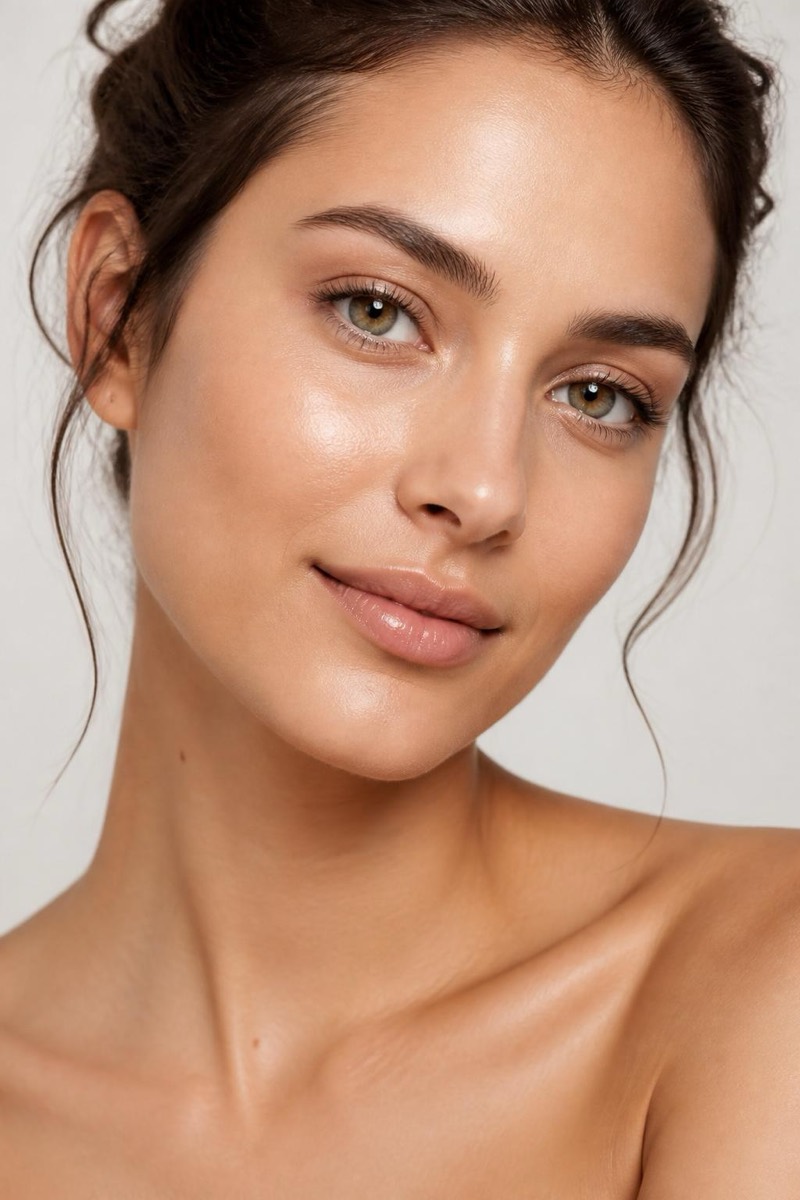
Subtle retouching
The difference between good retouching and a beauty filter is that good retouching survives zooming in. This filter evens skin tone and softens blemishes while explicitly preserving pores, fine lines and the texture that makes skin read as skin. Redness calms down, the uneven patches even out, and the photo remains believably, verifiably you — on a good day. It's tuned for the photos that matter: profile pictures, applications, the shot that's going in a frame. Nothing about the result announces that anything was done, which is the point.
How to use it
- 1.
Get Editable
Download Editable (free) from the App Store and open the Explore tab.
- 2.
Pick the Smooth my skin naturally filter
Find Smooth my skin naturally under Face Retouch and tap Try.
- 3.
Choose a photo
Pick a photo from your library — the edit runs automatically and is ready in seconds.
Tip: Skip it on photos that already have heavy in-camera beauty modes applied — stacking smoothing is how the plastic look happens.
More Face Retouch filters