How to Try a Hairstyle on Your Own Photo Before the Haircut
Bobs grow back slowly and regret grows fast. Here's how to preview any cut, color or style on your actual face with AI — and how to brief your stylist with the result.
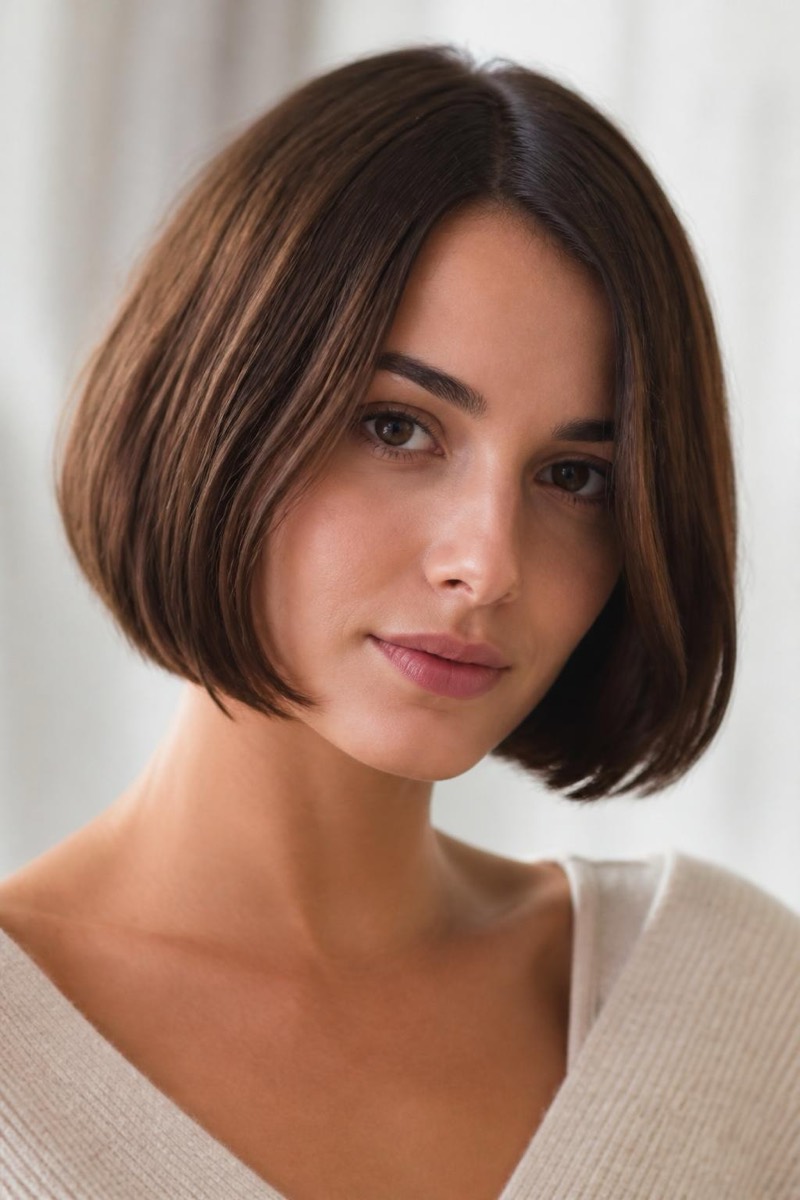
There’s a specific moment in every haircut story: the scissors have started and you’re suddenly, deeply unsure. Hair grows back — but a bad bob takes six months to undo, and grey coverage or a bleach job is a commitment measured in seasons.
The fix is embarrassingly obvious in hindsight: see the haircut on your own head before anyone picks up scissors. AI hairstyle preview does exactly that — your face, your coloring, the new hair — and it has quietly become a standard pre-salon step.
Why reference photos fail
The classic method — showing your stylist a photo of someone else — has a known failure mode: that cut was designed for that face. A chin-length bob is a different haircut on a round face than on an angular one; curtain bangs behave differently over every forehead. The photo you brought answers “is this a good haircut?” but not the question that matters: “is this a good haircut on me?”
An AI preview collapses that gap. The model keeps your face and renders the target style onto your actual head — length, texture, color interaction with your skin tone, all in one image.
Previewing a cut in Editable
- Take (or pick) a clear photo: face forward, hair visible, decent light. If you’re previewing a shorter cut, a photo with hair pulled back shows your face’s outline best.
- Open Editable’s Explore tab and browse the hair categories — women’s styles from sleek bob to balayage, and men’s cuts from buzz to pompadour.
- Tap Try, pick your photo — the preview renders in seconds.
- Repeat with rival styles. This is the real superpower: compare three finalists on your own face in the time a salon consultation takes to schedule.
Reading the results honestly
- Shape and length: trust them. How the cut frames your face is the preview’s strongest signal — it’s the question face shape decides, and your face is in the picture.
- Color: trust the direction. Whether warm or ash tones suit you shows clearly; the exact swatch will vary with salon products and light.
- Daily reality: preview can’t show it. The AI renders the style styled. It cannot show you the 20 minutes of morning maintenance a pompadour demands. Ask your stylist that part.
The screenshot is the brief
The best outcome isn’t just confidence — it’s communication. Walk in with the preview: “this, on me.” Your stylist sees the target already adapted to your hair line and face, which removes the single biggest source of salon disappointment: translation error between the photo you showed and the head you brought.
And if the preview talks you out of the cut — that’s the cheapest bad haircut you’ll never have.
Frequently asked
- How accurate is an AI hairstyle preview?
- Very accurate on shape and length — how a bob frames your jaw, where bangs land, how volume changes your silhouette. Color is directionally accurate but screens and salon lighting differ; treat previewed color as 'this family of shades suits me', not a paint code.
- Can I preview color changes like balayage or going grey?
- Yes — color-only changes (balayage, platinum, grey) are among the most reliable previews because your cut and face stay identical; only the one variable you're deciding on changes.
- Should I show the AI preview to my stylist?
- Absolutely — it's a better brief than a celebrity reference photo, because it already accounts for your hair, face shape and coloring. Stylists consistently prefer 'this, on me' over 'her hair, hopefully on me'.
- Does it work for men's styles?
- Fully — buzz cuts, fades, pompadours, slick-backs. The buzz-cut preview alone has prevented and caused an equal number of life decisions.
Try it on your own photo
Editable is free to start — edits take seconds, no editing skills needed.
Get Editable on the App Store